
This post describes how to deploy eBlocker4 in a Microsoft Hyper-V environment.
The guide is intended for administrators who want to run eBlocker as a virtual appliance and integrate it into an existing network using Hyper-V.
It covers the basic prerequisites, virtual machine configuration, and network setup required to get eBlocker 4 up and running. The focus is on a straightforward deployment using standard Hyper-V features, without assuming prior experience with eBlocker.
The steps outlined here are based on practical experience and are meant to serve as a reference or starting point for your own installation. Depending on your Hyper-V version and network design, minor adjustments may be necessary.
Tools:
– qemu-img-win-x64-2_3_0 -> extract with 7-zip
– 7-zip
Download eBlocker Image for VirtualBox:
– https://eblocker.org/community/main-forum/eblockeros-4-beta-available-for-testing/#post-8547
– https://eblocker.org/de/eblockeros-downloads/eBlockerVM-4.0.2-amd64-beta.ova
Extract the .ova image into a folder using 7-Zip
Open terminal with admin rights
qemu-img.exe convert eBlockerVM-disk001.vmdk -O vhdx -o subformat=dynamic eBlockerVM4.vhdx
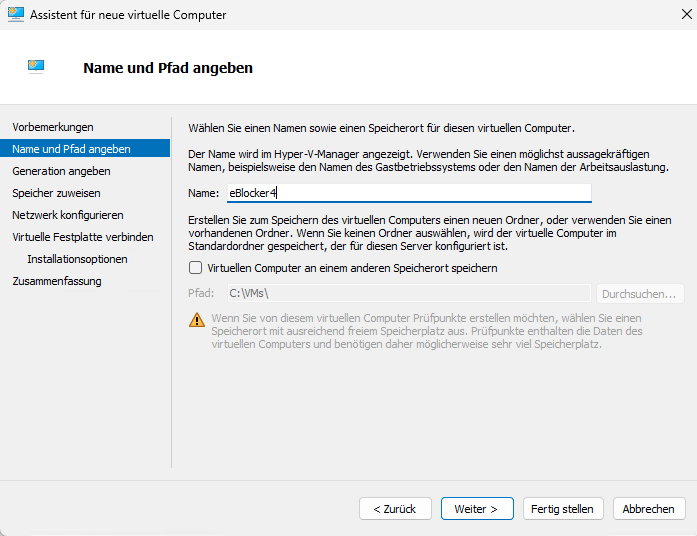
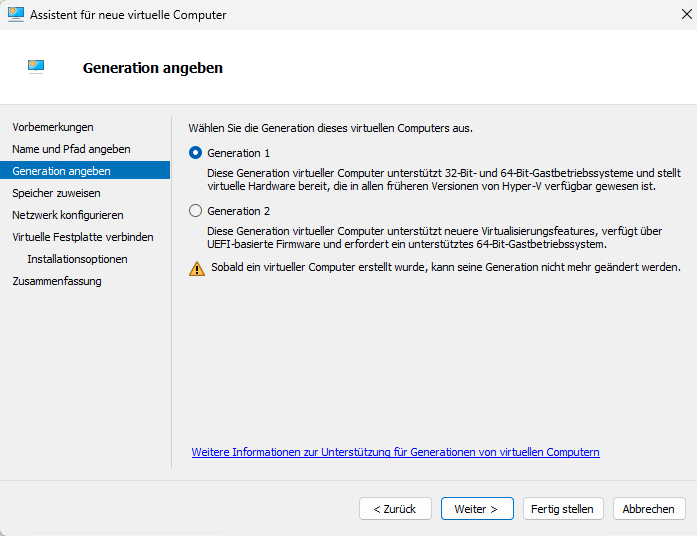
Create new hyper-v machine Generation 1 and choose the eBlockerVM4.vhdx
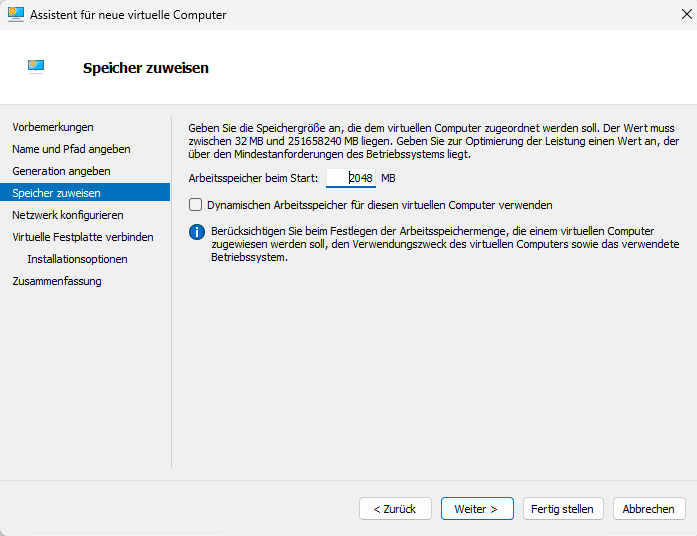
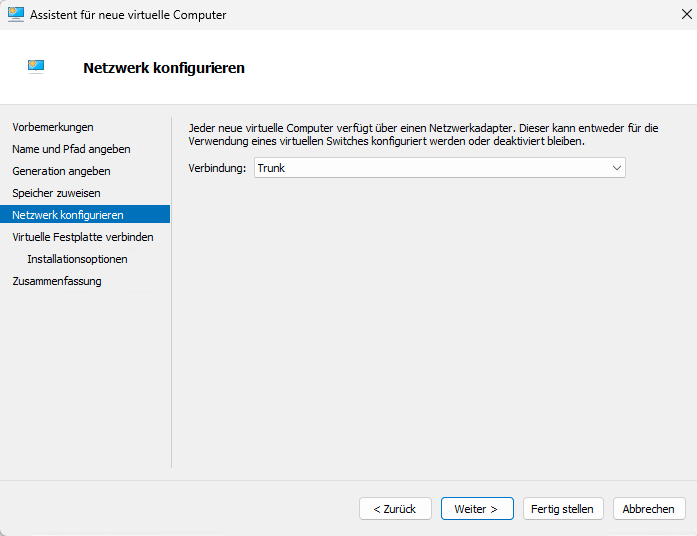
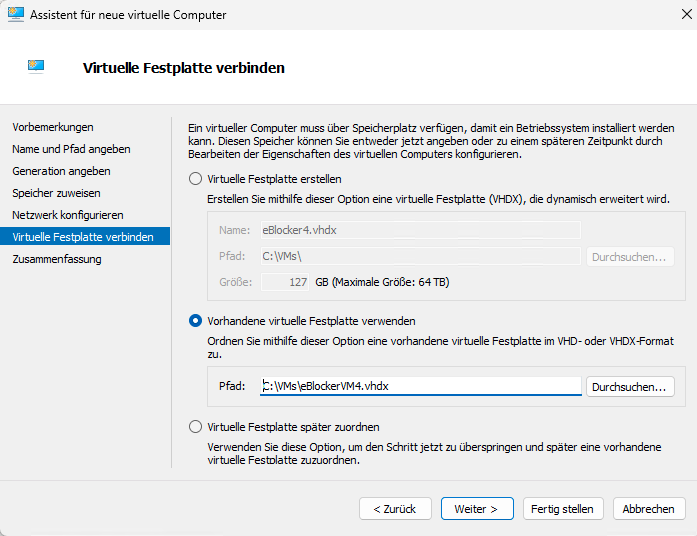
Now you can start your virtual machine
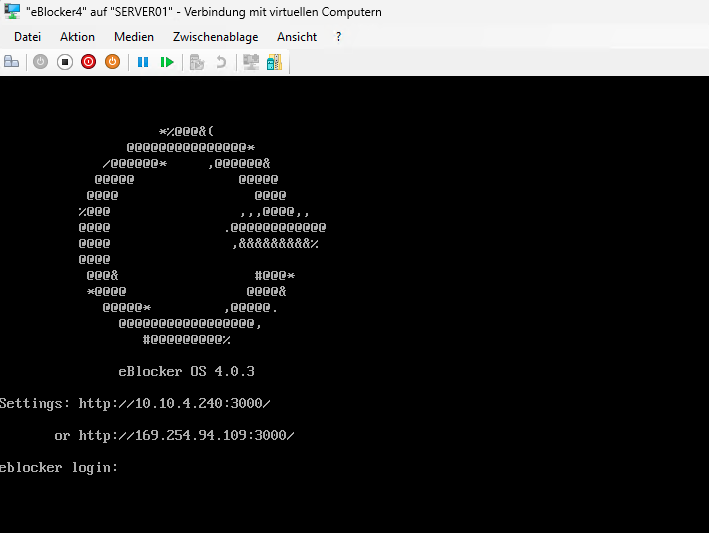
Open the url for configuration. Follow the first steps from the Developer site.
Short configuration (if you only want some devices used by eBlocker):
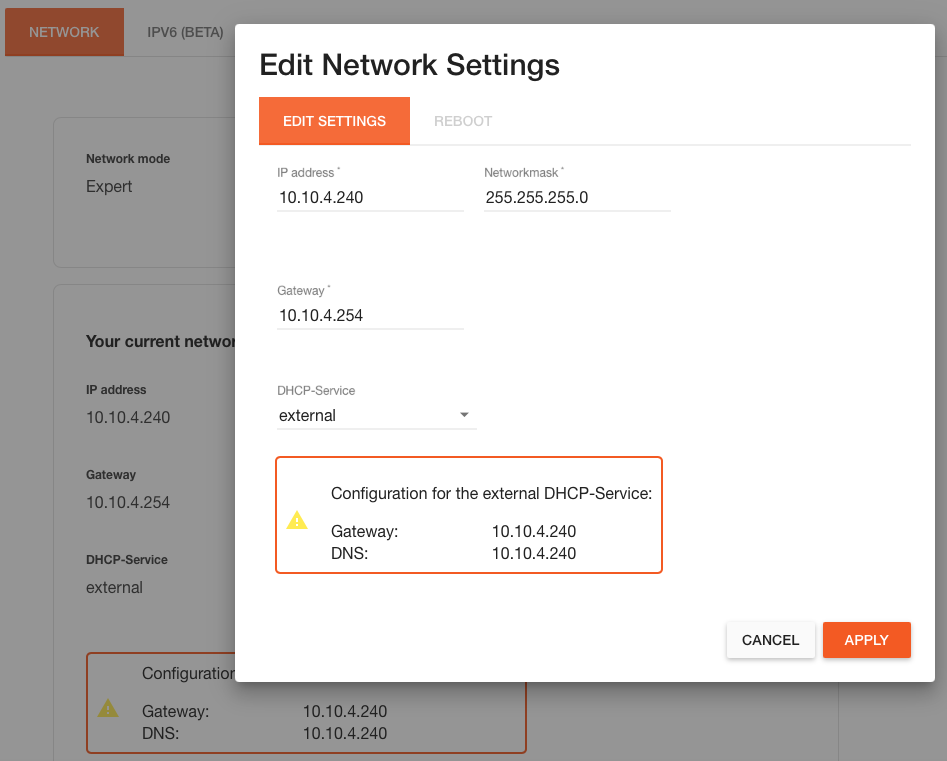
Network: NetworkMode -> Expert -> Choose an fix IP Adress, name your Gateway DHCP Services: external
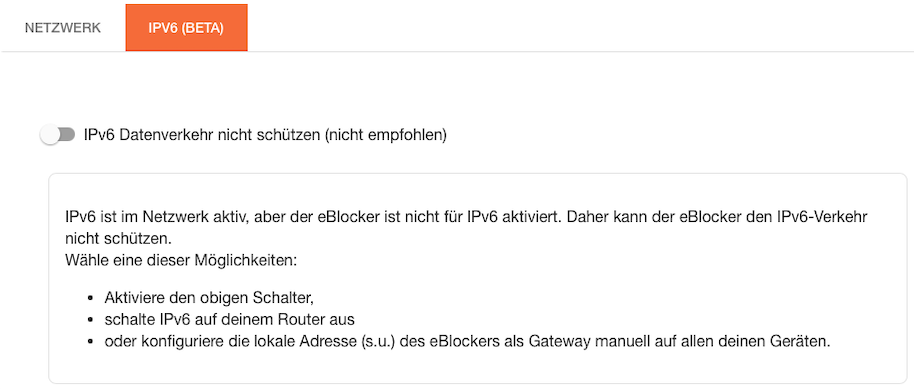
Network: IPv6 (BETA) -> deactivate
HTTPS -> HTTPS support activated
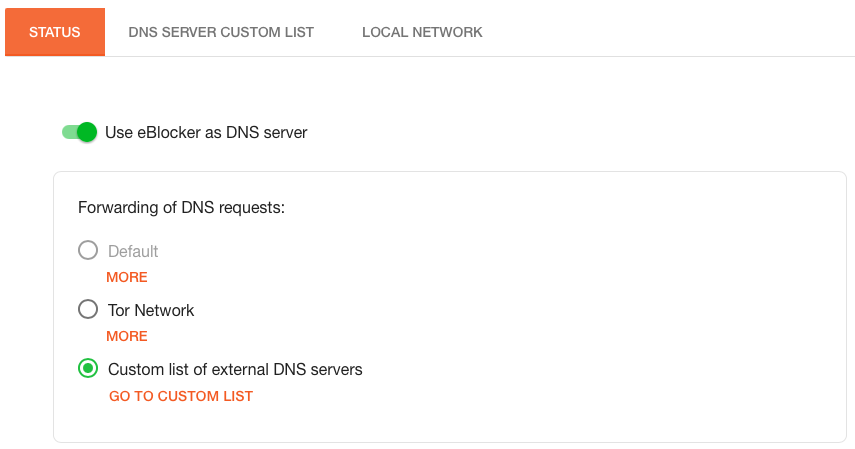
DNS Firewall: Use eBlocker as DNS server -> Custom list of external DNS servers -> name here your home DNS. Router, Pihole, etc.
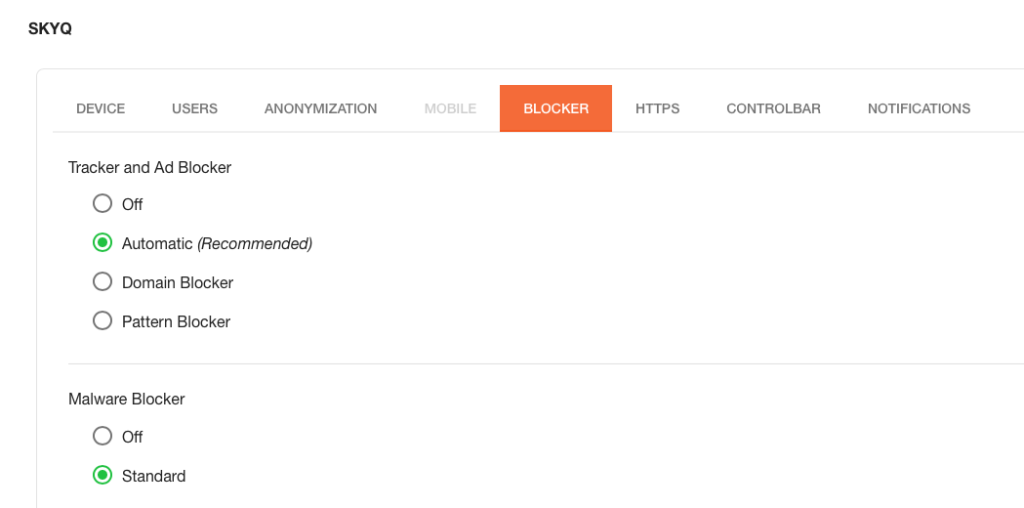
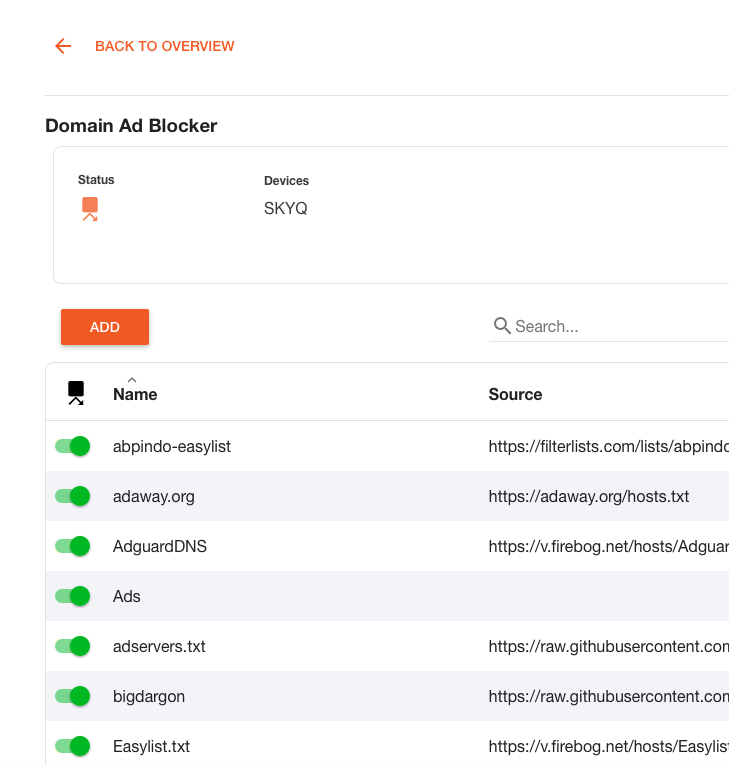
Blocker: define your own filterlists
For example click on Domain Ad Blocker, Domain Tracker Blocker and Domain Malware Blocker. You can found some Lists here: https://firebog.net
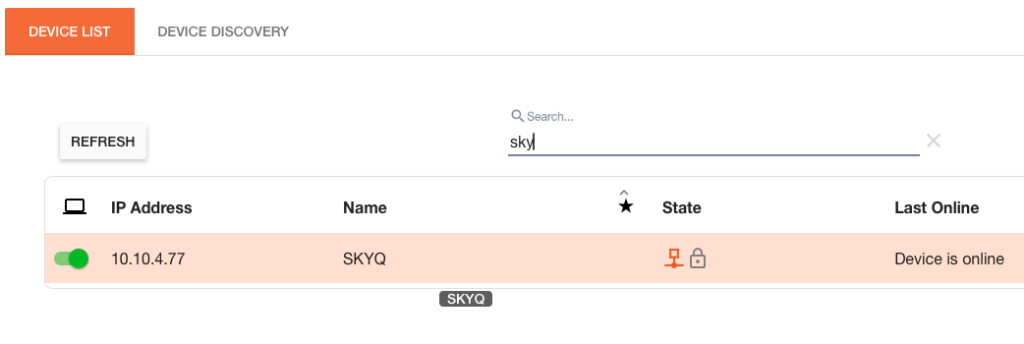
Devices -> activate the device you want to use eBlocker
The device needs as Gateway and DNS the IP from your eBlocker. For domain blocking you don’t need to enroll SSL certificates on the device.