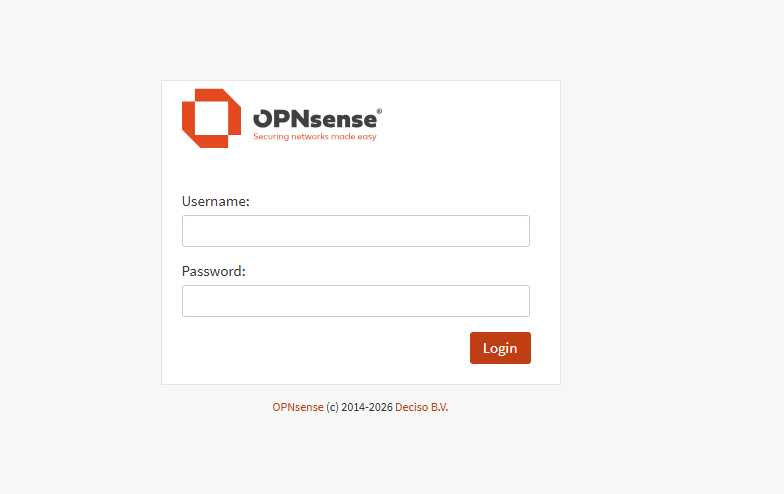

After booting, log in using
User: installer
Password opnsense
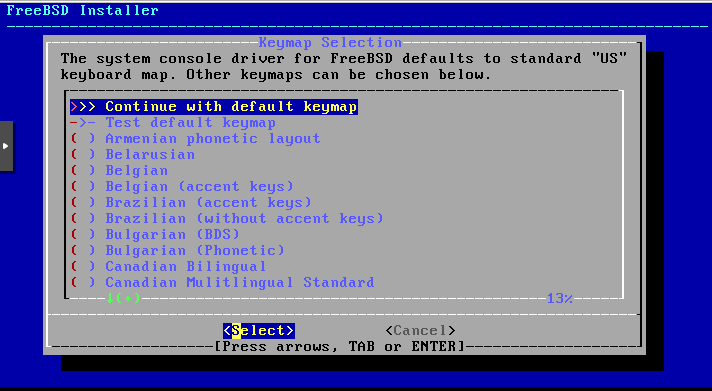
Then proceed using the default keymap.
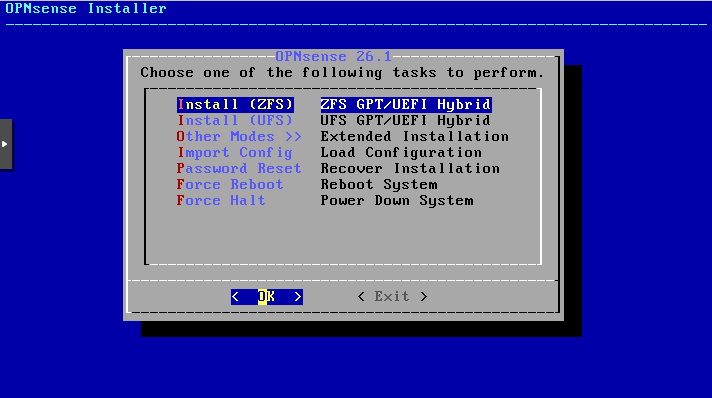
Choose „Install ZFS“ (this allows you to create snapshots later).
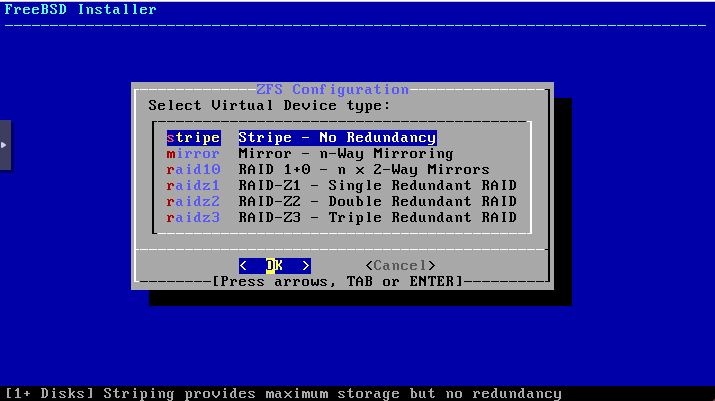
Select your virtual disk as the target for the installation.
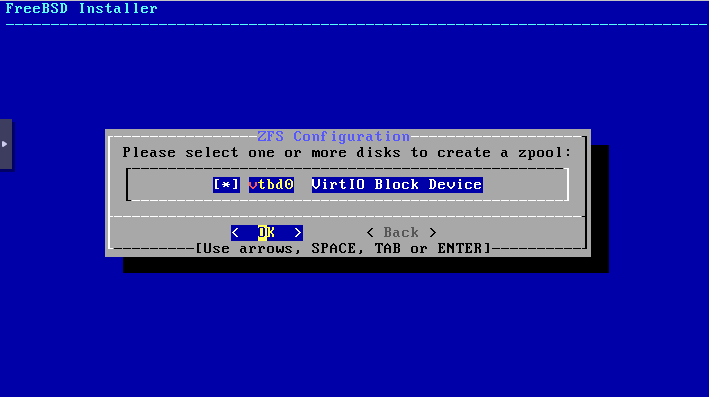
Confirm that the data on the disk may be erased once you have verified that it is the correct virtual disk and that deleting the data is acceptable.
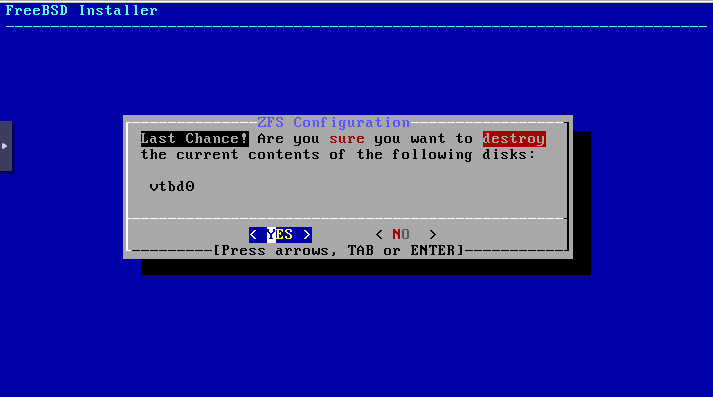
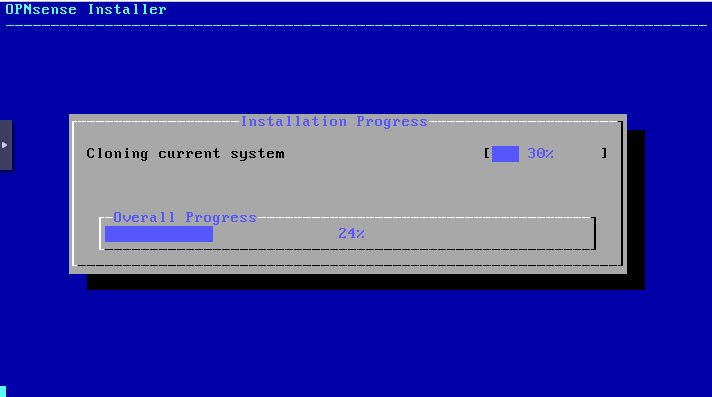
The installation has started and is now in progress.
Click Complete Install. The password can be changed later in the GUI.
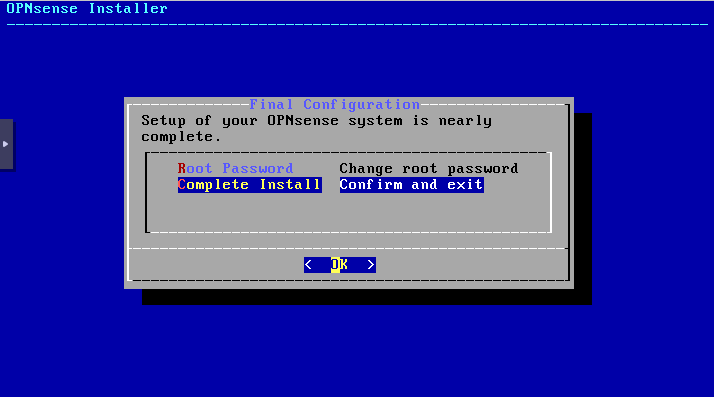
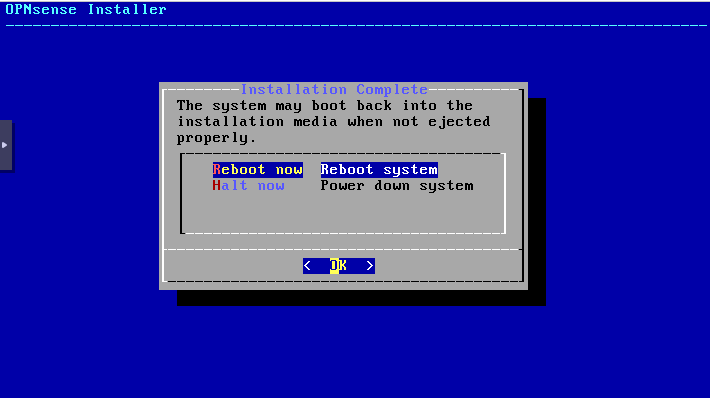
Now perform a restart to complete the installation.
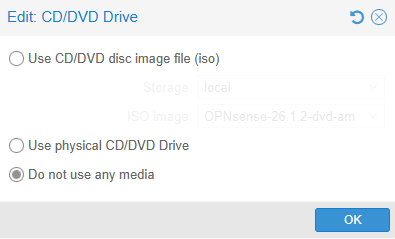
Afterwards, you can remove the ISO:
Open the VM console in Proxmox and log in to OPNsense after the reboot.
User: root
Password: opnsense
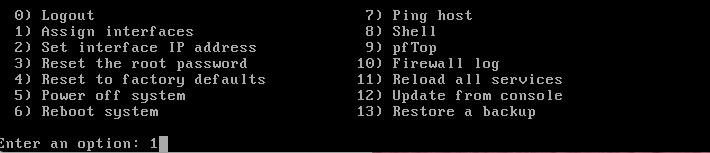
Then select option 1 – Assign interfaces.

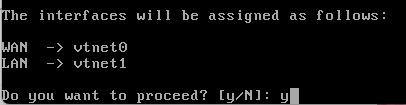
Now the assignment will be applied. If in doubt, double-check your MAC address against the one in the VM configuration. You can see the names of the interfaces and NICs in the field above in your console.”


Let’s skip the DMZ for now
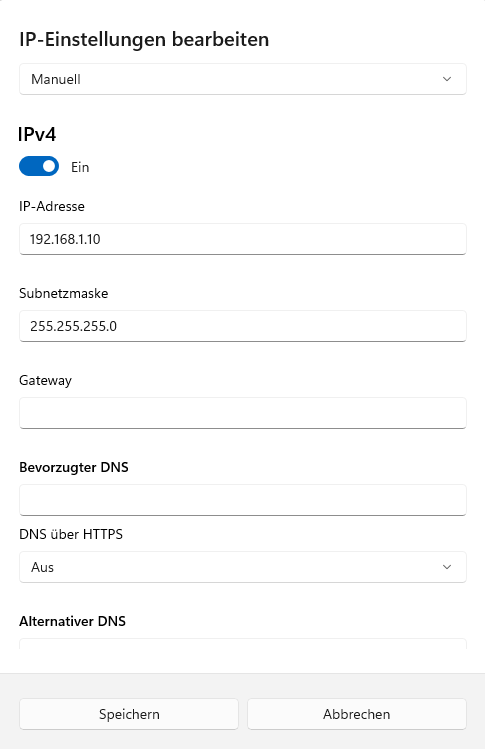
Connect your client directly to LAN3 (NIC2) using a network cable and assign it the IP address 192.168.1.10 with subnet mask 255.255.255.0. You can leave the gateway and DNS fields empty. Once the configuration is complete (e.g., DHCP server configured), you can switch your device back to DHCP. Below is an example of the network settings for Windows:
You should now be able to log in to the OPNsense web interface using your browser at https://192.168.1.1
Use the following credentials:
Username: root
Password: opnsense
Once logged in, you will have access to the full GUI to continue configuration and management of your OPNsense firewall.”